
Oracle PeopleSoft | Setting Up Alerts for Pending Approvals

In today’s fast-paced work environment, keeping track of pending approvals can be a challenge. Often, users need to log in and navigate through multiple menus to check their approval queue. This blog post provides a proof-of-concept guide on how to set up automated alerts to notify users of pending approvals, ensuring they can stay on top of their tasks without constantly logging in to check.
Alerts and Notification in PeopleSoft:
Alerts are proactive messages sent to users to notify them about specific events or conditions that require their attention. These can be configured to trigger based on predefined criteria or thresholds. Alerts help in maintaining workflow efficiency by ensuring that users are promptly informed about important events.
Notifications are messages that inform users about specific actions or statuses. While like alerts, notifications can be more informational and less urgent. They are designed to keep users updated on the status of processes, approvals, or other relevant activities.
Steps to Set Up the Alert/Notification:
1. Query Security: Add EOAW Records
To start, ensure the necessary EOAW records are available in the Query Record Search. Add EOAW_TXN and EOAW_SUMM_DTL to the Query Security.
Navigation: Main Menu > PeopleTools > Security > Query Security > Query Access Manager
- Navigate to the Query Access Manager. Search for the Query Tree: QUERY_TREE_EO
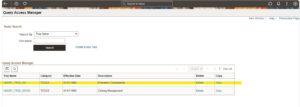
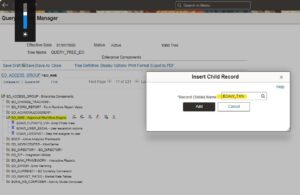
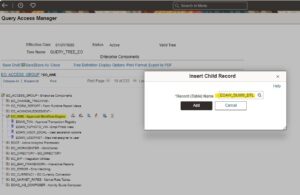
- Search for and add EOAW_TXN and EOAW_SUMM_DTL if they are not already present.
2. Create the Query
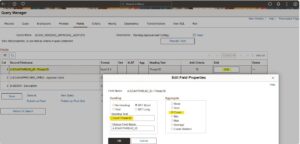
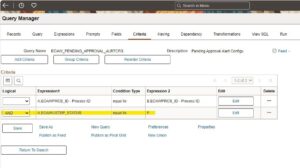
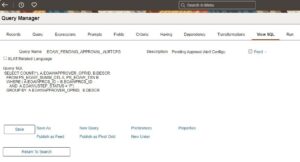
Next, create a query using the EOAW_SUMM_DTL and EOAW_TXN records to fetch pending approvals. This query can be customized to include additional details as needed.
Navigation: Main Menu > Reporting Tools > Query > Query Manager
- Go to the Query Manager and Create a new query using the specified records.
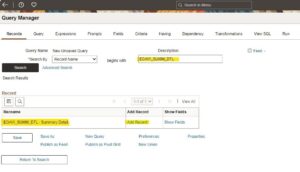
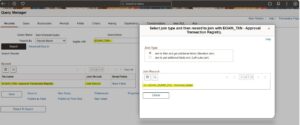
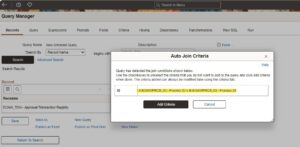
- Customize the SQL to fit your business requirements.
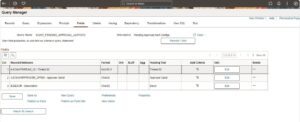
3. Create Message Catalog Entry
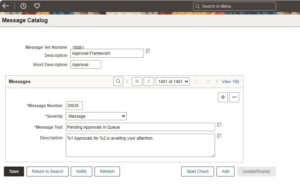
Create an entry in the Message Catalog for the query. This entry will be used to format the alert message.
Navigation: Main Menu > PeopleTools > Utilities > Administration > Message Catalog
- Navigate to the Message Catalog. Add a new entry with your desired messages, input binds, and message set/number.
4. Create the Alert Definition
Now, create an alert based on the query you created. This alert will notify users of pending approvals.
Navigation: Main Menu > Enterprise Components > Events & Notifications > Alerts > Alert Definition
- Navigate to Alert Definition and Create a new alert using the query.
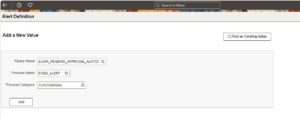
- Define the alert details as per your requirements.
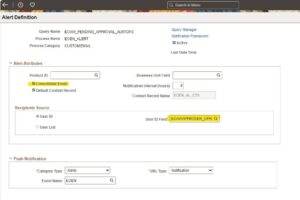
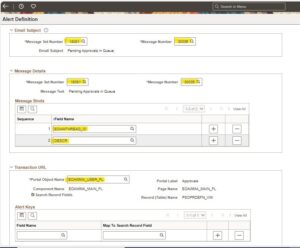
5. Run the Alerts
Finally, schedule and run the alerts as needed. You can set the process to run at specific times, such as daily, to ensure users receive timely notifications.
Navigation: Main Menu > Enterprise Components > Events & Notifications > Alerts > Run Alerts
- Navigate to Run Alerts and enter the Alert Query details to run the Process
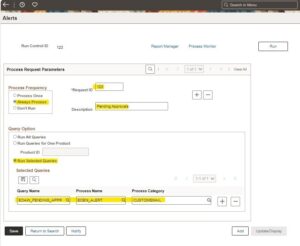
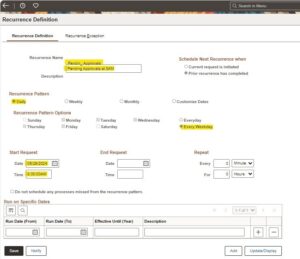
- Set up the process to run on a recurrence, such as daily or at a specific time.
Navigation: Main Menu > PeopleTools > Process Scheduler > Process Scheduler Recurrences
6. Receiving Alerts
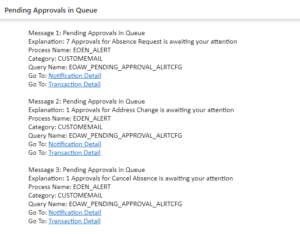
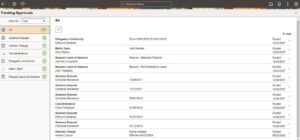
With everything set up, users will receive alerts for pending approvals directly in their notifications. This allows them to prioritize their tasks without the need to log in and check their approval queue constantly.
Conclusion
By following these steps, we can create a system that automatically notifies users of pending approvals, helping them stay organized and efficient. This proof-of-concept guide provides a foundational approach that can be tailored to meet our specific business needs and security requirements. Stay ahead of the tasks and ensure no approval is missed with these automated alerts.
Author: Nandhini Devi Raman, Oracle PeopleSoft Consultant