
Dig Deeper into Fluid Extended Absence Self Service | Oracle PeopleSoft PUM 31 feature

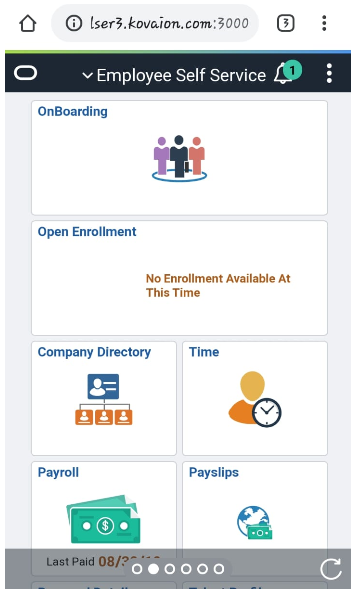
Fluid Extended Absence Self-Service permits PeopleSoft to end users to create and maintain Extended Absence Requests using fluid pages. This feature was introduced in Oracle PeopleSoft PUM Image 31, to enhance employee flexibility using fluid pages. This feature can be used to avail of Extended Absence, attach documents and submit for approval. Employees can also review approved extended absences.
Leave Application
- Login (Employee). Navigate to the Home page Employee Self Service Time (tile) Extended Absence Request (tile)
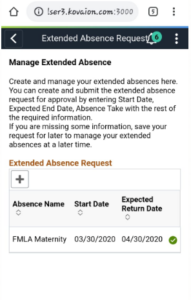
- Click on the Extended Absence Request tile to open the Absence Activity Guide.
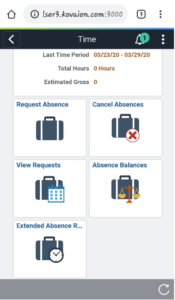
- Users can easily add a new extended absence by clicking on the + button as shown in the above image.
- Select the Absence Type and Absence Take from the dropdown and click on the Launch button to open Activity Guide for the extended absence details entry page. By default, the Absence Type is All.
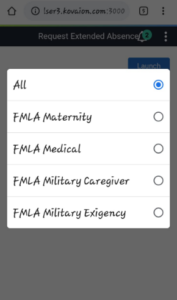
Note: The FMLA (Family Medical Leave Act) protects benefits and job restoration for employees who take a leave from work to care for themselves or family members. This law went into effect on August 5, 1993, and contains provisions regarding employer coverage, employee eligibility and entitlement, notice and certification, a continuation of health benefits, and job restoration. (Reference)
- Enter the details on the Absence Information page by selecting “FMLA Maternity”
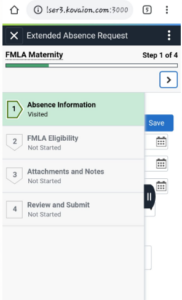
- Click on Next which will traverse to the “FMLA Eligibility Section”. Fill in the necessary details to validate the FMLA eligibility.
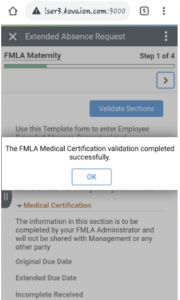
- Activity Guide traverses to the Attachment and Notes section.
Click on Add Attachment to add any attachments if required. Review and Submit the application.
The extended Absence Request has been successfully submitted and is pending approval. Click on the Extended Absence Request link, it will show absences saved, submitted, and approved.
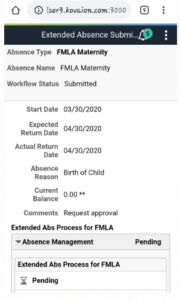
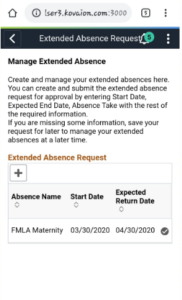
The above illustrates absences in the draft (saved), submitted as well as approved status. The employee can review an existing “Approved” absence request and add a child Absence if required.
Leave Approval Process
- Login (Manager). Navigate to Homepage Manager Self-Service Approvals.
- Filter with Type as – “Extended Absence”
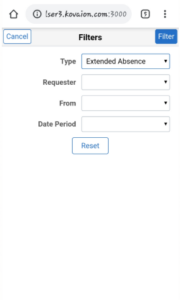
- Click on the request
- Approve the request
Child Leave Application Process
- Login (Employee). Navigate to Home page Employee Self Service Time (tile) Extended Absence Request (tile)
- Click on the Extended Absence Request tile to open the Absence Activity Guide. Click on the already “Approved Absence”.
Note: The user can add a child request to the existing extended absence when the extended absence status is approved.
- Add the Child Absence by clicking on “Add Absence”
- Users can view the individual absence requests that are available under the extended absence request.
Business Benefits:
- Fluid Absence exposure to end users while using Extended Absence Self-service feature.
- Partial Absence request can be added/saved as a draft before submission
Author: Ashadulla, PeopleSoft Team